


The idea of a passwordless future is slowly starting to come into focus, a year and a couple of days after Google announced the introduction of passkeys. When we say slowly, we mean it. While big tech companies like Apple, Microsoft and Sony PlayStation have introduced or announced that they will support passkeys, it’s taken some time, but we’re not mad at the progress we’ve seen in just a year.

While Google has its own password manager built right into the Chrome web browser, some may not either trust the search giant enough to give them all of their passwords or have a password manager of their own that they choose to use, all of which aren’t hard to use, but managing passwords, in general, can be. Passkeys allow you to sidestep this by letting you use biometrics to log in.
With Google being in charge of the push, setting up passkeys is straightforward. Below, we’ll show you how to set up a passkey to get into your Google account. For more tech tips, check out how to boost your iPhone battery life with these two tweaks and how to properly clean your MacBook. And here’s how to see what Google will announce at its Google I/O conference.

If you want to use a hardware security key to enter your passkey and sign in to your Google accounts, Google has its own Titan Security Key. The key works with your computer, but can also connect to most iPhone and Android devices, as long as they support USB or NFC.
Details
You need to meet the requirements to use Passkeys
Before you set up your Google passkeys, you must meet the following requirements, which vary depending on what device you’re using.
- For mobile devices, you must be running at least iOS 16 or Android 9.
- For your computer, you must be running at least MacOS Ventura or Windows 10. Also, your web browser must be at least Google’s Chrome 109, Apple’s Safari 16 or Microsoft’s Edge 109.
How to set up passkeys with Google
In the web browser of your choice — on your phone, tablet or computer — head over to g.co/passkeys. If you’re already logged in to your current Google account, you’ll be asked to enter your normal password to verify your identity. If you need to switch accounts, tap the current email to choose from all your other Google accounts.
Now enter your password when prompted, and hit Next. On the following page, you’ll be asked to create a passkey. When the pop-up appears, hit Continue. The passkey will be saved to your device (for example, iCloud Keychain on iOS), which varies depending on your device.
You’ll need to follow any prompts and use whatever biometric your device asks to confirm your identity. Once you do, your passkey will be created for that device.
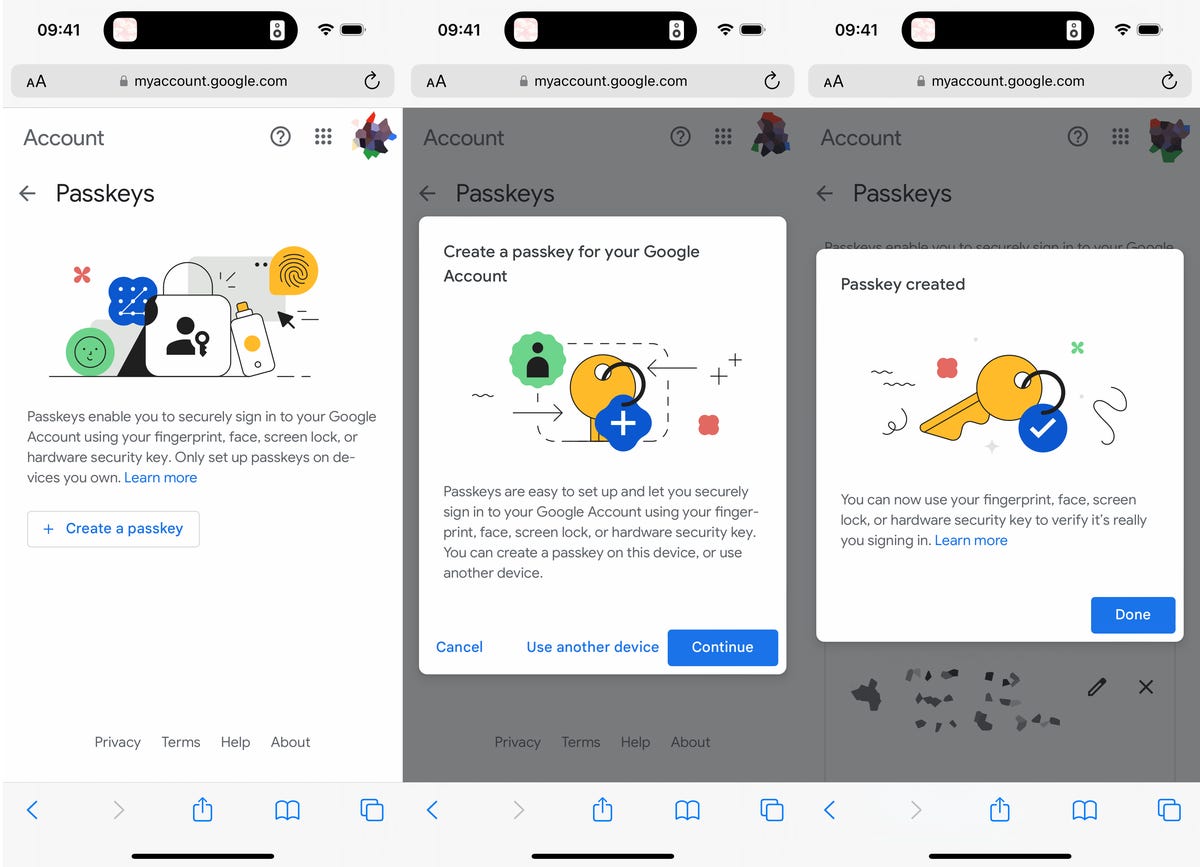
You can use your face, fingerprint, screen lock or hardware security key to log in to Google once your passkey is set up.
Note: There is an option to create a passkey using another device (tablet, external security key), but the easiest method is to just create the passkey on the device you’re using.
You can now use your passkey to log in to your Google account. If you have two-factor authentication enabled, your passkey bypasses 2FA because a passkey means you have physical possession of your phone, which is what 2FA essentially does. Also, if you don’t want to use your passkey for any reason, you can always use your password to log in.
Lost your device that had a passkey on it? Google’s got you
If for any reason you lose your device or have it stolen, you can still log in to your Google account. Using another device that has access to your Google account: Go to g.co/passkeys, sign in to your account using your usual password and remove the passkey associated with your lost or stolen device. Just hit the X next to the passkey and then hit Remove to get rid of it and go back to using your password.
For more tech tips, check out nine surprising uses for Siri and how to get the Android 15 beta right now.
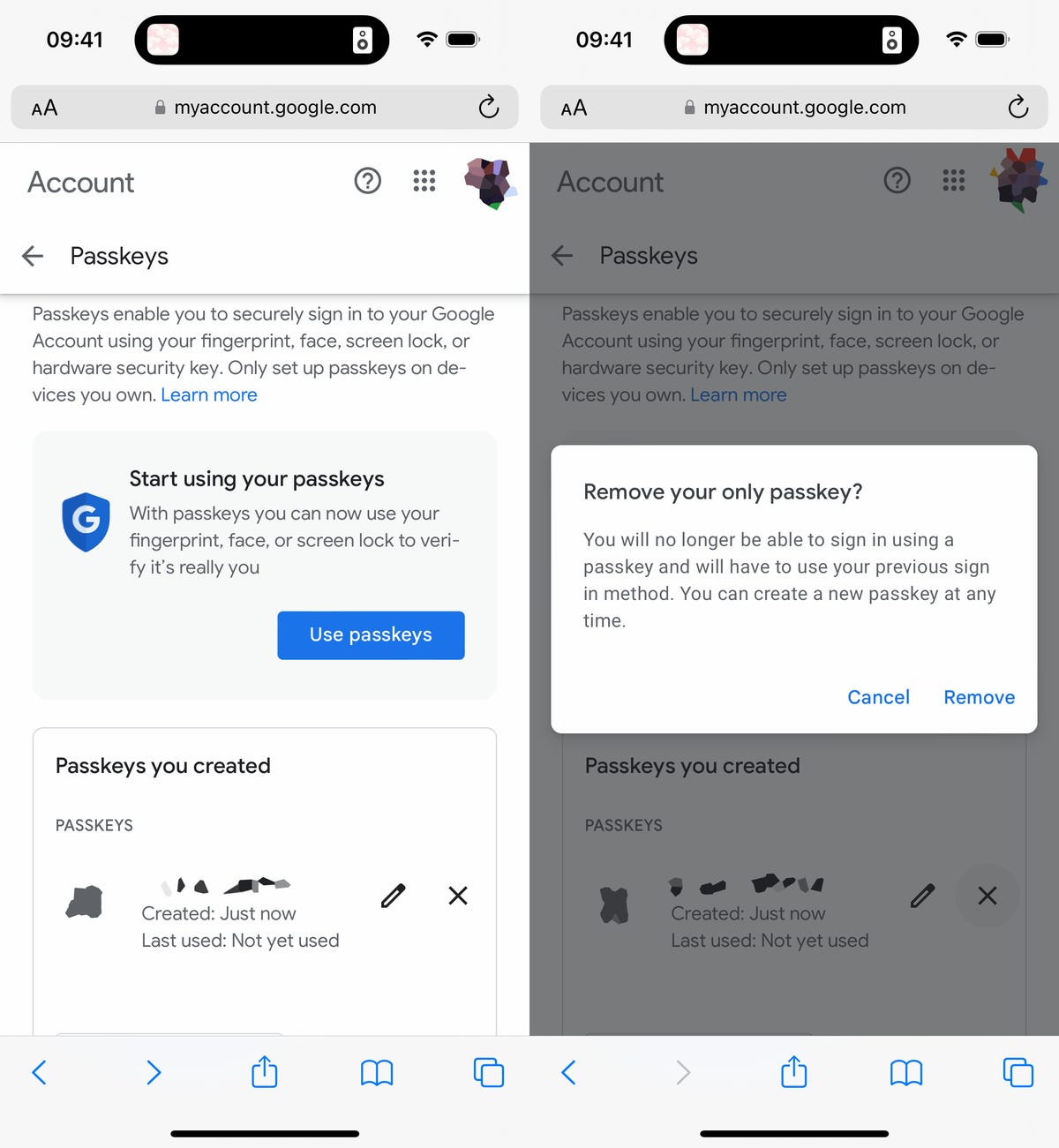
Even if you don’t lose your device, you can still remove your passkey and go back to your usual password.